Documentation
How to get the most out of Gydmation, from your first prompt to a deployed workflow.
Getting started
Type what you want automated into the composer, in plain English. Gydmation checks its template library first — if something close already exists, it customizes that; otherwise it generates from scratch. Either way, you get a real, validated n8n workflow.
Writing good prompts
The more specific you are about the trigger and the destination, the less back-and-forth you'll need.
"When a new row is added to my Google Sheet, post a summary to the #sales Slack channel."
"Notify the team about new sales." — which sheet? which channel?
You don't need to know n8n's node names — just describe the trigger, the action, and where it should go.
Clarifying questions
If something in your prompt is genuinely ambiguous — an unnamed channel, an undefined threshold — Gydmation asks instead of guessing. Tap an option, or type your own answer, and it continues building with that in mind.
Editing a workflow
Open any workflow from your history and describe the change in plain English:
"Add a Gmail step at the end that emails me if it fails."
Gydmation edits the existing workflow rather than rebuilding it from scratch, and redeploys it if it's already connected to n8n.
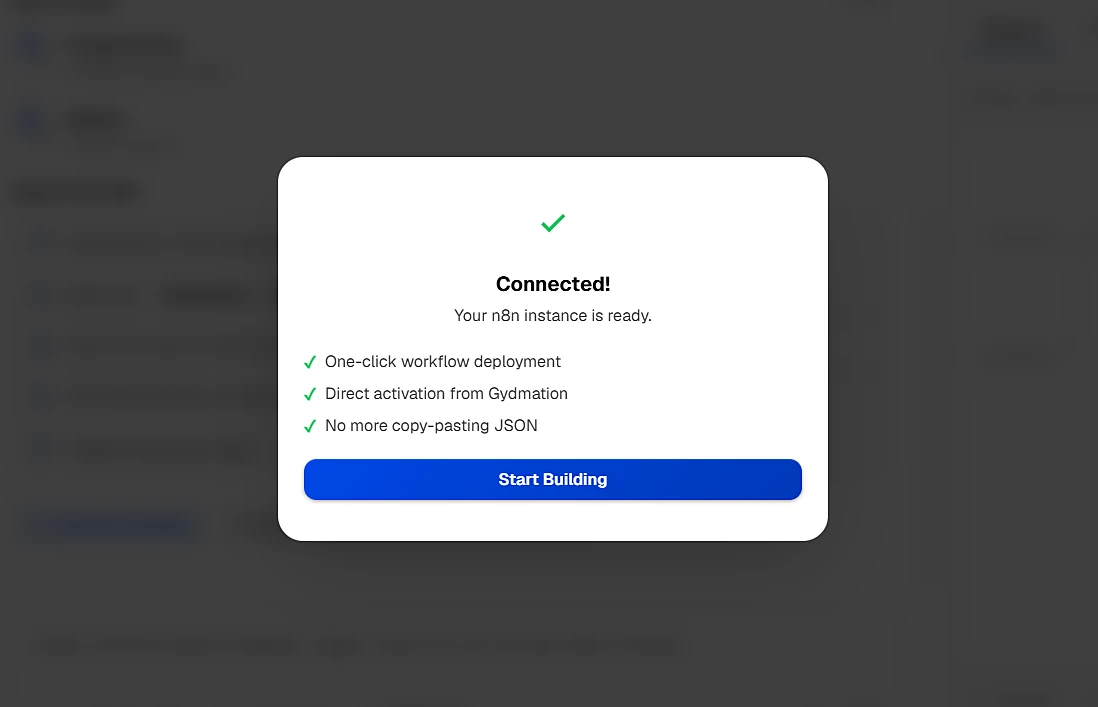
Connecting n8n
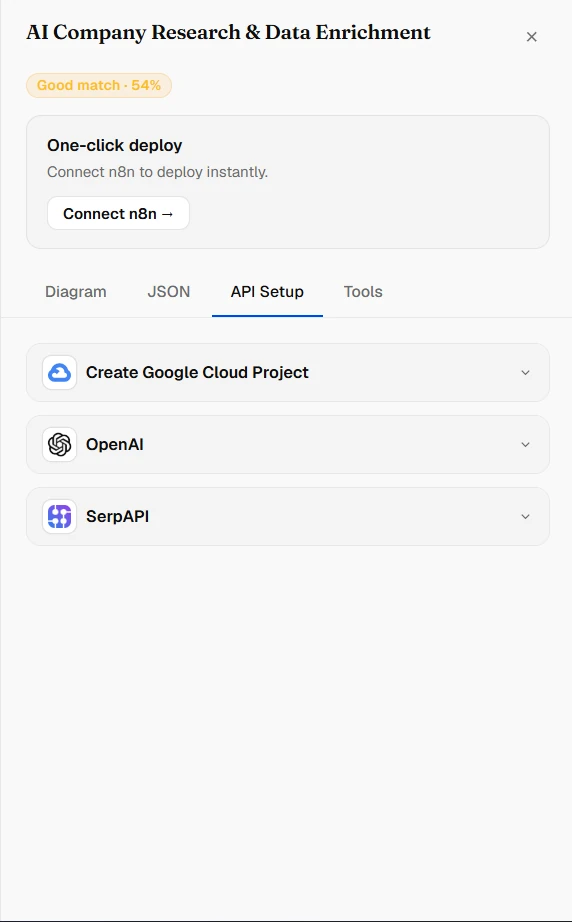
- Click Connect n8n in the header
- Enter your n8n instance URL and an API key from your n8n account
- Once connected, every generated workflow can be deployed with one click
Don't have an n8n instance yet? You can still generate and review workflows — connect one whenever you're ready to deploy.
Deploying
Once connected, click Deploy on any workflow. It's sent straight to your n8n instance, ready to activate. Editing a deployed workflow and saving again updates the same workflow in n8n, rather than creating a duplicate.
Plans & billing
Free: 5 workflows a month, using your own API key. The full template library is open for your first 5 days; after that, Free keeps the 5 top-rated templates in each category plus 5 community templates of your choice.
Pro ($29/mo): 1,000 AI credits a month using our managed models — Claude Sonnet 5 and Claude Opus 5 — with no API key needed, and all 10,000+ templates. Larger workflows use more credits. Cancel anytime by emailing support@hacroo.com — you keep Pro access through the end of your current billing period.
Top-ups (Pro): Need more credits before your monthly reset? Buy a one-time top-up of $5, $10 or $25, or any whole amount from $5 to $100, from Settings → Billing in the app. $1 = 100 AI credits, added as soon as payment clears. In India, top-ups are charged in rupees at ₹88 per $1 plus 18% GST (for example, $5 = ₹440 + ₹79.20 GST = ₹519.20), with a GST tax invoice emailed to you. Unused top-up credits carry over from month to month while your Pro plan is active; each month's included credits are used first.
Want to use a different model, like GPT-5.6 Terra? On any plan, you can add your own API key (BYOK) for that or any other supported model — those generations use your key directly and don't draw from your Pro credit balance at all.
Choosing a model
Switch models from the picker in the composer, any time — including mid-conversation. On Free, you'll need your own API key for whichever model you pick; Pro models work with no setup.
See the full AI Models page for every supported model ranked by accuracy, with guidance on which one to pick and when.